
Free, in your browser
MP3 to WAV Converter
Convert MP3 to WAV for the editor, sampler or CD burner that only takes WAV. Choose 16-bit, 24-bit or 32-bit float, keep the sample rate or switch to 44.1 or 48 kHz, and get a file that starts and ends exactly where the song does. It all happens in your browser, so your audio stays on your device.

A song for an editor
The WAV is exactly as long as the song: the encoder’s silence at both ends is removed.
Original
MP3 · 192 kbps
44.1 kHz · stereo · 0:30
722 KB
WAV 16-bit
WAV · PCM 16-bit
44.1 kHz · stereo · 0:30
5.3 MB
Original
WAV 16-bit
Made from this site’s own recordings and converted by the converter in the studio.
- no sign-up, no file limit
- Free
- your files stay on your device
- In your browser
- 32-bit as float for mixing
- 16, 24 or 32-bit
- or the MP3’s own rate
- 44.1 or 48 kHz
- encoder silence removed at both ends
- Exact length
- drop a whole folder of MP3s
- Several at once
How do you convert MP3 to WAV?
To convert MP3 to WAV, open the converter, drop in your MP3 files and keep the default 16-bit WAV, or pick 24-bit or 32-bit float and a 44.1 or 48 kHz sample rate. The converter decodes each MP3 in your browser, removes the silence the encoder added at both ends and writes an uncompressed WAV you can play or download. Nothing is installed and your files stay on your device.
Convert MP3 to WAV in three steps
Free, with no account, on a computer or a phone.
Add your MP3 files
Open the converter and drop in a single song or a folder of samples. Each file lists its bitrate, sample rate, channels and length.
Set the WAV format
16-bit at the original rate suits most uses. Choose 24-bit or 32-bit float for a mixing project, 48 kHz for video, or mono for a voice track.
Download the WAV
Convert, listen to the result and save it under the MP3’s own name, ready to drag into your editor or burning software.
Why use this MP3 to WAV converter
WAV files that drop into a project and line up, made on your own device.

Starts on the first beat, ends on the last
Every MP3 encoder pads the audio with a short stretch of silence at the start and the end. The converter reads the encoder’s own note of how much it added and removes exactly that, so a 9.6-second loop is still 9.6 seconds as WAV and repeats without a gap.
Converted on your own device
Unreleased mixes, client voiceovers and sample packs stay with you. The conversion runs in your browser on your phone or computer, and there is nothing to upload, so even an hour-long MP3 starts converting the moment you drop it in.
The bit depth and rate your project asks for
Keep 16-bit for CDs and everyday editing, take 24-bit or 32-bit float when a session needs headroom, and resample to 44.1 or 48 kHz when the destination is fixed. Mono folds a voice down to one channel.
Know how big the WAV will be
WAV stores every sample uncompressed, about 10 MB a minute at CD quality. That is roughly four times a 320 kbps MP3 and eleven times a 128 kbps one, and the converter shows the size for each file before you start.
Lossless from here on
The WAV holds exactly what the MP3 decodes to. Trim it, fade it, normalise it and save it again as often as you like: nothing further is lost, which a chain of MP3 re-saves can’t promise. For 16-bit files, a fine dither keeps quiet fades smooth.
Straight on to vocals or a transcript
Once the WAV is ready, the vocal remover can split it into vocals and an instrumental, and the transcriber can write out what is said, without downloading and uploading again.
MP3 to WAV samples
Each sample is an MP3 made from this site’s own songs and voices, converted by this converter. The spectrum stays the same; only the size changes.
Your audio stays yours
What happens to your files, point by point.
Converted on your device
Your browser decodes the MP3 and writes the WAV, on a computer or a phone.
Your files stay on your device
MP3s and WAVs stay in the folders you keep them in; the converter needs no copy.
No account needed
Convert as many files as you like without signing up or giving an email address.
Same sound, same length
The WAV plays exactly what the MP3 holds, from the first sample to the last.
MP3 to WAV guide: settings for every destination
When you need WAV instead of MP3
Most players are happy with MP3. WAV is what you reach for when the next tool in line asks for it: an audio or video editor, a hardware sampler, CD burning software or a phone system. Pick the settings for where the file is going.
- 1Music editors and DAWs: 24-bit or 32-bit float, the MP3’s own sample rate.
- 2Video editors: 48 kHz, the rate video projects run at; 16 or 24-bit.
- 3Hardware samplers: 16-bit, 44.1 kHz, mono for one-shots if the sampler prefers it.
- 4Audio CDs: 44.1 kHz, 16-bit, stereo, the only format the Red Book standard allows.
- 5Phone menus and hold messages: check what your phone system asks for; mono saves space.
What converting MP3 to WAV keeps, and what it can’t add back
Converting MP3 to WAV keeps exactly what the MP3 contains, sample for sample, and stores it without compression. From that point on, every edit and every save is lossless.
What it can’t do is restore detail the MP3 encoder already removed. The high frequencies a 128 kbps file left out stay out, and the spectrum before and after looks the same, as the samples on this page show. If you still have the original recording or master, convert from that instead.
MP3 to WAV settings: bit depth and sample rate
16-bit is the CD standard and holds far more range than any MP3 delivers, so it is the default. When the result is 16-bit, the converter adds a very low dither noise, which keeps fade-outs and quiet passages smooth.
Choose 24-bit when the file goes into a mixing session and will be processed further, or 32-bit float if you want room above full scale while you work. Keep the original sample rate unless the destination names one: 48 kHz for video, 44.1 kHz for CDs. Changing it uses a high-quality resampler, but staying at the source rate is always the cleanest.
Why the WAV is so much bigger
An MP3 throws away what it judges you won’t hear and packs the rest tightly. A WAV stores every sample as it is: about 10 MB a minute for 44.1 kHz, 16-bit stereo, compared with 2.4 MB for a 320 kbps MP3 and about 1 MB for 128 kbps.
One WAV file can hold up to 4 GB, about 6.7 hours of CD-quality stereo. For longer recordings, split the MP3 first or choose a lower sample rate or mono.
Loops and samples that land on the beat
Encoders such as LAME add a few hundredths of a second of silence at the start of an MP3 and pad the end to fill the last frame. They also write a small tag that says how much. Players that read it play the song seamlessly, but many converters ignore it and pass the silence on into the WAV, so a drum loop drifts out of time.
This converter reads that tag and cuts exactly the padding, so loops repeat cleanly and stems line up in your project. Very old MP3s without the tag keep the decoder’s few milliseconds at the start; nudge those by hand if timing is critical.
Building a sample pack? Convert the whole folder at once and keep the 24-bit setting, so every one-shot and loop arrives in your sampler at the same format.
Other ways: desktop apps and the command line
A desktop audio editor opens an MP3 and exports it as WAV, one file at a time, with its own export settings. The music app on a Mac can create WAV versions of songs once you choose the WAV encoder in its import settings. Both work offline, on a computer.
On the command line, ffmpeg -i input.mp3 output.wav converts with default settings; add -ar 48000 -c:a pcm_s24le for a 48 kHz, 24-bit file. Going the other way, from a WAV to a smaller file? Use WAV to MP3.
Who converts MP3 to WAV
The audio is ready; the next tool wants it as WAV.
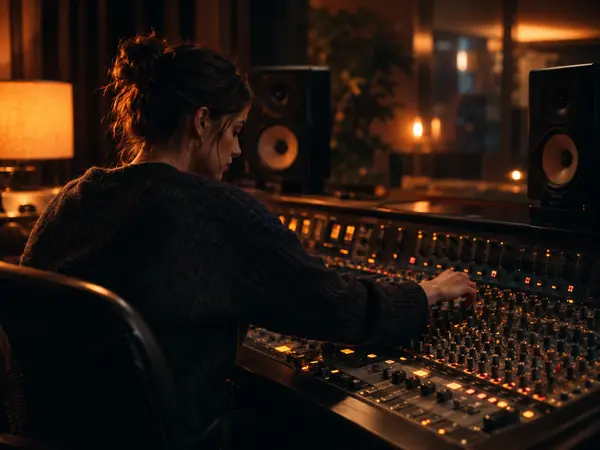
Music producers
Drop loops and reference tracks into a DAW session as 24-bit WAV.

Video editors
Bring a song or voiceover into a 48 kHz project without drift.
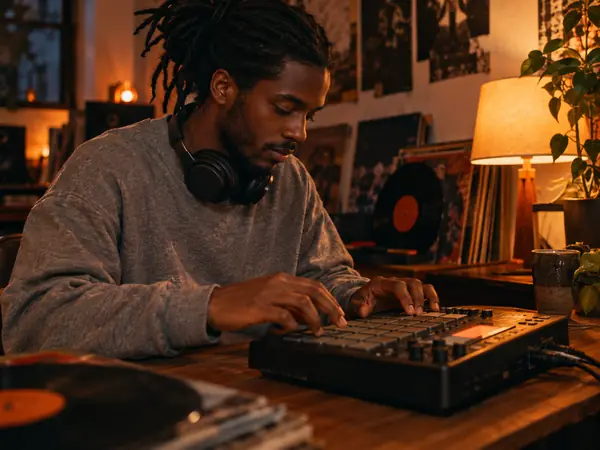
Beatmakers with samplers
Load one-shots and loops onto drum machines and hardware samplers.
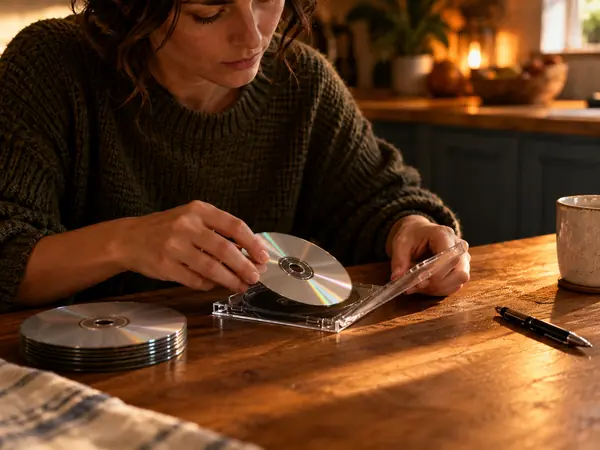
Burning an audio CD
Make a CD for the car or a gift from MP3s, at 44.1 kHz and 16-bit.

Phone greetings and hold music
Prepare announcements in the WAV format your phone system takes.
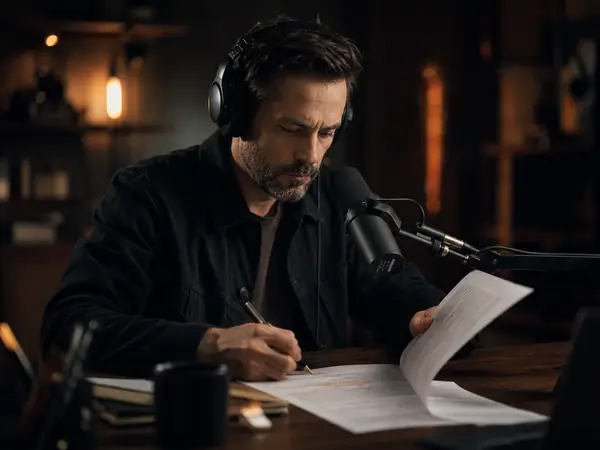
Podcast and radio editing
Edit interviews and segments losslessly before the final export.
MP3 to WAV FAQ
More converters and audio tools

Convert MP3 to WAV now
Drop in your MP3s, choose the WAV format and download files that are ready for your project, free and right in your browser.