
Free, in your browser
Online Voice Recorder
This online voice recorder turns any microphone into a clean recording in a few clicks. Press Start recording, allow the microphone, and talk: a level meter tells you when you are too quiet or too loud, pause whenever you need to, and stop to get an MP3 straight away. Your recordings are made and saved in your browser, and each one can go on to become text or a cloned voice.
On a busy street (Voice mode)
Noise suppression, echo cancellation and automatic volume on: the street noise drops by about 16 dB and the voice stays as loud as before.
- Noise suppression
- Echo cancellation
- Automatic volume
MP3 · 262 KB
Compare with
The same street (Music mode)
- Noise suppression
- Echo cancellation
- Automatic volume
- no sign-up, nothing to install
- Free
- built-in, USB or headset
- Any mic
- clean-up on or off
- Voice or Music
- made in your browser
- MP3 or WAV
- and resume, no gaps to cut
- Pause
- or a cloned voice, in one click
- To text
How do you record your voice online?
Open the online voice recorder, press Record and allow the microphone when your browser asks. Speak at a hand’s width from the microphone while the level bar moves without reaching red, then press Stop. The recording appears in the list as an MP3 to download; choose WAV instead if you will edit it. Nothing needs installing, and the recording is made in your browser.
Record voice online in three steps
This voice recorder online works the same on a laptop, a desktop with a USB microphone or a phone.
Press Record
Allow the microphone when the browser asks. Pick another microphone from the list if you have more than one.
Talk, pause, stop
Watch the level as you speak. Pause for a break and resume in the same recording, then press Stop.
Download or keep going
Download the MP3 or a WAV, or send the recording to the transcriber, voice cloning, the trimmer or the joiner.
An audio recorder online that helps you sound good
Everything a voice memo app does, plus what a good recording needs.
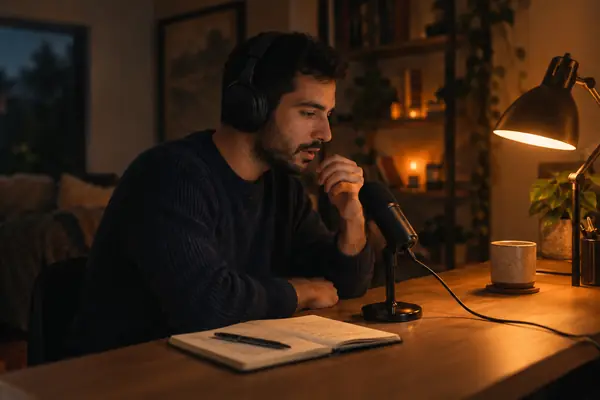
A level meter that tells you what to fix
The recorder watches the input while you speak and says it plainly: no sound from this microphone, too quiet, or too loud and clipping. Check the microphone before you start, so the first take is the good one.
Voice or Music in one click
For speech, the browser’s noise suppression, echo cancellation and automatic volume clean up the room; on our street sample they lowered the traffic by about 16 dB without making the voice quieter. For an instrument or singing, Music turns them all off so nothing is filtered out.
Every take kept
Record as many takes as you like. Each one stays in the list with its waveform while the site is open, even if you go to another tool and come back. Play them, rename them and keep the best.
MP3 or WAV, made in your browser
Each take becomes an MP3 as soon as you stop: 128 kbps for a mono voice, 192 kbps for stereo, or the quality you choose. Pick WAV for editing. The file is encoded on your own device and saved under the take’s name.
Silence at the ends trimmed
Turn on Trim silence at the ends and the quiet before your first word and after your last is cut from the saved file, so a voice note starts the moment you speak.
From a recording to text or a cloned voice
Send a take to the transcriber to get every word as text, or to voice cloning to make an AI voice from it. Cut it in the trimmer, or join several takes into one file.
Online voice recorder samples
One street voice memo, read by a library voice over a recorded street, played into the browser’s microphone and recorded with this audio recorder online twice: once in Voice, once in Music. Play both and listen to the traffic.
Voice recorder online guide: clear recordings on any device
Recording on a computer
Any laptop microphone works with an online voice recorder, and a USB microphone or a headset sounds better. Plug it in before you open the page, then choose it from the microphone list; the browser names your microphones once you have allowed it to use one.
If the browser asked and you clicked Block, allow the microphone again from the lock or camera icon in the address bar, then press Record.
Recording on a phone
To record voice online on a phone, open the page in your phone’s browser, press Start recording and allow the microphone. Hold the phone the way you would for a call, a little below your mouth, so your breath doesn’t hit the microphone.
Keep the screen on while you record: a phone that locks may stop the browser from recording. Save the take when you finish, and it goes to your downloads or Files.
How to get a clear recording
Most of a good recording happens before you press Record.
- 1Distance: keep the microphone about a hand’s width from your mouth, slightly to the side for the letters p and b.
- 2Room: a room with curtains, a sofa or clothes absorbs echo; a bare kitchen or bathroom adds it.
- 3Level: speak at your normal volume and watch the bar. It should move clearly but never reach red.
- 4Noise: switch off fans and close windows. Noise suppression helps, but less noise to start with sounds best.
Record ten seconds, play it back and listen once on headphones. It takes a moment and saves a whole retake.
Voice or Music: when to use each
Voice turns on the three clean-up switches every browser offers: noise suppression lowers steady background noise, echo cancellation removes sound coming back from your speakers, and automatic volume evens out loud and quiet moments. They are made for speech, calls and voice notes.
For a guitar, a piano, singing or anything musical, choose Music. The clean-up treats music as noise and can make it sound watery, so Music records what the microphone hears. For an AI voice clone sample, Music is better too, because the clone should learn your real voice.
MP3 or WAV?
MP3 is small and plays everywhere: a minute of mono voice at 128 kbps is under 1 MB. Choose it for voice notes, messages, lectures and anything you share.
WAV keeps every sample without compression, at about 5 MB a minute. Choose it if you will edit, mix or master the recording, then make an MP3 at the end with the WAV to MP3 converter.
After recording: text, a cloned voice, a trim
A recorded interview, meeting or lecture can go straight to the transcriber, which writes out every word with speakers and times. A clean minute of your own voice can become an AI voice in voice cloning, and then read any text.
To cut a mistake, open the take in the audio trimmer. To put several takes together, send them all to the audio joiner in the order you recorded them.
What people use an online voice recorder for
Anything you would say into a microphone, kept with an online voice recorder.
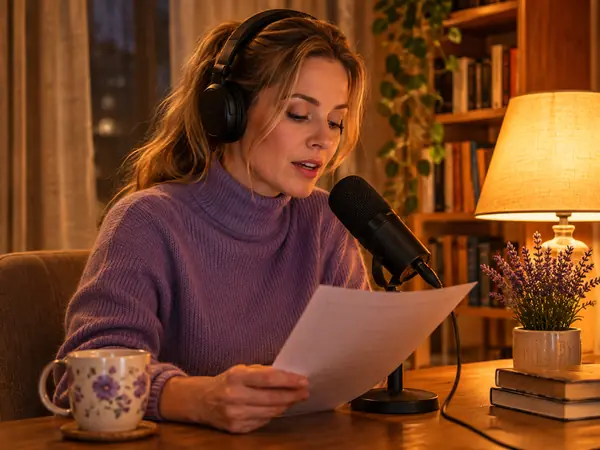
Voice samples for AI cloning
Record a clean minute of your voice and turn it into an AI voice.

Podcast intros and episodes
Record a segment, trim it and join it to the rest of the show.

Voice memos on the go
Say a note into your phone and keep it as an MP3, or turn it into text.
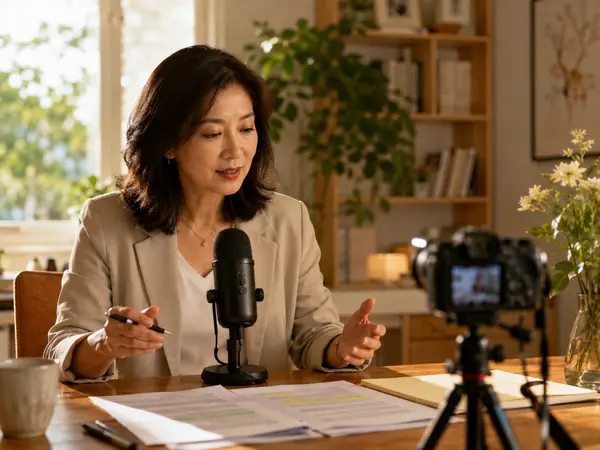
Lessons and course audio
Record a lesson for students to replay, without installing anything.

Song ideas and demos
Catch a melody with Music mode on, so nothing is filtered out.
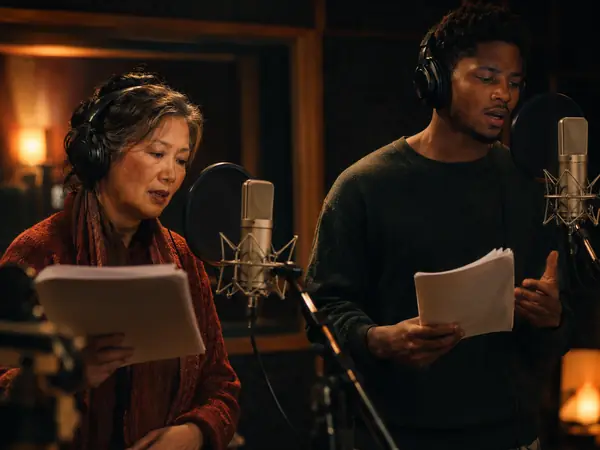
Radio plays and voice acting
Record lines take by take and keep the best ones.
Online voice recorder FAQ
More audio tools


Open the online voice recorder
Press Start recording, allow the microphone and talk. Your MP3 is ready the moment you stop.