
Free, in your browser
WAV to MP3 Converter
Turn WAV to MP3 at 128, 192, 256 or 320 kbps and see how big each version will be before you start. Mixes, field recordings and podcast takes become files you can email, upload and stream, and the conversion runs on your own phone or computer, so your audio stays on your device.
One WAV at four bitrates
A 24-bit instrumental made for this page: listen to each bitrate and see where its high frequencies end.
Original
WAV · PCM 24-bit
48 kHz · stereo · 0:30
8.6 MB
MP3 128 kbps
MP3 · 128 kbps
48 kHz · stereo · 0:30
481 KB
The result is 5.6% of the original’s size
Original
MP3 128 kbps
Made from this site’s own recordings and converted by the converter in the studio.
- no sign-up, any number of files
- Free
- suggested for lossless sources
- 320 kbps
- of a CD-quality WAV, at 320 kbps
- About a quarter
- 60-minute WAV to MP3 on a desktop
- 27 s
- integer and float WAV read
- 8 to 32-bit
- your recordings stay with you
- In your browser
How do you convert WAV to MP3?
To convert WAV to MP3, open the converter, add your WAV files and choose a bitrate. For a finished mix, pick 320 kbps; for demos 256 or 192; for speech 128. Each choice shows the MP3 size for your file. The converter encodes the audio in your browser and hands you an MP3 to play or download, with nothing to install and nothing sent away.
Convert WAV to MP3 in three steps
Free and without an account, on a computer or a phone.
Add your WAV files
Drop in one recording or a whole session. Each file lists its bit depth, sample rate, channels and length as soon as it is read.
Pick the bitrate by its size
The four bitrates show what your file will weigh at each one. 320 kbps is suggested for lossless sound; mono recordings can stay mono.
Save the MP3
Listen to the result, then download it with the WAV’s name. Spoken recordings can go on to the transcriber in one click.
Made for lossless recordings
The questions WAV owners ask first: how small, how good, and how long it takes.
Know the size before you convert
A minute of CD-quality stereo WAV is about 10.6 MB. At 320 kbps the same minute is about 2.4 MB, at 192 kbps about 1.44 MB. The bitrate list works this out for your file, so you choose by real numbers.
An hour of audio in under a minute
Recordings are read in pieces rather than loaded whole, so a long session is no harder than a short one. On a desktop, an hour of WAV becomes an MP3 in about 27 seconds.
Your recordings stay on your device
Unreleased mixes and private interviews are encoded by your own browser. There is nothing to upload, so a 500 MB session starts converting the moment you add it.
High-resolution and float files handled
24-bit and 32-bit WAV, 32-bit and 64-bit float, 88.2 to 192 kHz: the converter reads them all. Rates MP3 can’t carry are brought to 44.1 or 48 kHz, and a float bounce that peaks above full scale is lowered as a whole instead of clipped.
Starts and ends with your recording
Encoders pad an MP3 with a moment of silence at each end. The converter records exactly how much, so players trim it and the MP3 lines up with the WAV in a timeline or a loop.
From podcast take to transcript
A raw interview becomes a small MP3 for sharing, and the same file goes straight on to the transcriber without another download.
WAV to MP3 samples
One 24-bit WAV at four bitrates, a podcast take and a float bounce, each converted here. Compare the spectrum and the size of every result.
Your audio stays yours
How your recordings are handled, point by point.
Encoded on your device
The WAV is read and the MP3 written by the browser you already use, on a computer or a phone.
Files stay where you keep them
Masters, stems and interviews remain on your device; the converter works without a copy.
No account needed
Convert one take or a whole album without signing up.
Saved under your file’s name
Each MP3 keeps the WAV’s name, so a session folder converts into one you can still find your way around.
WAV to MP3 guide: compress WAV, choose a bitrate
Why WAV files are so large
A WAV stores every sample as it was recorded, with no compression at all. CD-quality stereo, 44.1 kHz at 16 bits, comes to about 10.6 MB for each minute; a 24-bit, 96 kHz session is more than three times that.
MP3 keeps what you can hear and leaves out detail masked by louder sounds. That is why a WAV to MP3 conversion at 320 kbps ends up close to a quarter of the original, and at 128 kbps nearer a tenth.
WAV to MP3 at 320 kbps or less: choose by purpose
The right bitrate depends on what the MP3 is for. The samples below play the same instrumental at all four rates with its spectrum, so you can hear and see where the high frequencies end before you decide.
- 1Finished songs and masters for listeners: 320 kbps, about 2.4 MB a minute.
- 2Demos, rough mixes and references: 256 or 192 kbps, about 1.9 or 1.44 MB a minute.
- 3Podcasts, interviews and lectures: 128 kbps, about 0.96 MB a minute.
- 4Voice notes in mono: 128 kbps mono sounds the same and keeps the file small.
High-resolution WAV: 24-bit and 96 kHz
MP3 has no bit depth of its own. The encoder works from 16-bit samples, which is still far finer than the detail an MP3 keeps, so a 24-bit or float source loses nothing you would hear to that step. Sample rates are another matter: MP3 tops out at 48 kHz.
Files at 88.2 or 176.4 kHz are brought to 44.1 kHz and files at 96 or 192 kHz to 48 kHz, with a careful resampling filter, not a shortcut. If you need the high-resolution version itself, keep the WAV as your master.
Mono podcasts and multichannel files
Many interview and podcast recorders write mono. The converter keeps a mono WAV mono, and it can fold a stereo file to one channel when both sides carry the same voice. A mono MP3 at 128 kbps is clear for speech and half the size of a stereo one at 256.
Surround and multitrack WAVs, such as 5.1 film stems, are mixed down to stereo with the centre and surround channels set lower and the LFE left out.
Other ways: desktop apps and the command line
The music app on a Mac can create MP3 versions after you set MP3 as its import encoder, and a desktop audio editor can export any open project as MP3. Both work file by file, on a computer.
From a terminal, one line does it: ffmpeg -i in.wav -c:a libmp3lame -b:a 320k out.mp3. Going the other way, to edit an MP3 in a program that wants WAV, use MP3 to WAV.
Troubleshooting WAV files
Most WAVs convert without a second thought. A few cases are worth knowing about before you start.
- 132-bit float bounces that peak above 0 dBFS: the whole file is lowered to fit, and the result shows by how much.
- 25.1 or other multichannel WAVs: folded down to stereo automatically.
- 3Very large files, past a gigabyte: they work, but a computer is faster and has more memory than a phone.
- 4A file that is not really WAV: the converter reads the contents, not the name, and tells you what it found.
Keep the WAV. An MP3 is ideal for sharing, but edits and future masters should always start from the lossless file.
Who converts WAV to MP3
Lossless recordings made easy to send, post and play.
Home studio mixes
Send a bounce to bandmates or clients without a gigabyte download.

Podcast episodes
Turn a raw interview take into a file your host accepts.
Field recordings
Shrink nature and city sound from a handheld recorder for sharing.

Live gigs
Make a long concert recording small enough to post the same night.
Lessons and rehearsals
Keep a practice session as an MP3 to play back on a phone.
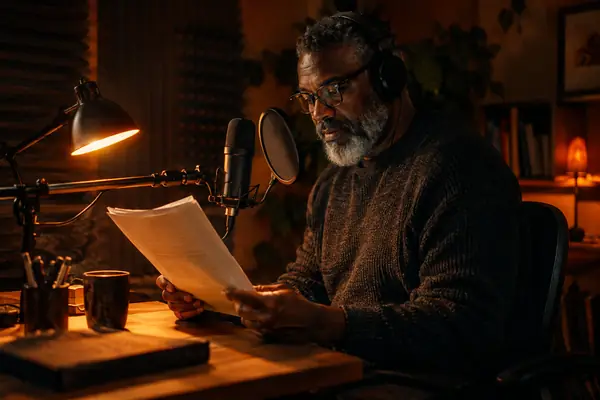
Voice-over auditions
Send a casting reel in the format most portals ask for.
WAV to MP3 FAQ
More converters and audio tools


Convert WAV to MP3 now
Add your recordings, check the sizes, and save MP3s at up to 320 kbps, free in your browser.