
Free, in your browser
MP4 to MP3 Converter
Convert MP4 to MP3 without installing anything: pick a bitrate from 128 to 320 kbps, convert several videos at once, and download MP3 files that start and end exactly where the video’s sound does. The converter runs in your browser, so your videos stay on your device.
A recorded lesson
Speech needs no more than 128 kbps, so the MP3 is a small part of the video’s size.
 Original MP4 video
Original
MP4 · AAC · 122 kbps
48 kHz · stereo · 0:16
4 MB
MP3 128 kbps
MP3 · 128 kbps
48 kHz · stereo · 0:16
259 KB
The result is 6.5% of the original’s size
Made from this site’s own recordings and converted by the converter in the studio.
- no sign-up, no file limit
- Free
- your videos stay on your device
- In your browser
- MP3, or WAV for editing
- 128 to 320 kbps
- 10-minute video to MP3 on a desktop
- 7 s
- drop a whole folder of clips
- Several at once
- no added silence at either end
- Exact length
How do you convert MP4 to MP3?
To convert MP4 to MP3, open the converter, drop in your MP4 files and pick a bitrate: 128 kbps for speech, 192 kbps for most music, 320 kbps for the best quality. The converter reads the video’s sound track, encodes it as MP3 in your browser and gives you a file to play or download. Nothing is installed and your video stays on your device.
Convert MP4 to MP3 in three steps
Free, with no account, on a phone or a computer.
Add your MP4 files
Open the converter and drop in one video or many. Each file shows its sound track: codec, sample rate, channels and length.
Choose the MP3 quality
Pick 128, 192, 256 or 320 kbps; the list shows how big each file will be. Choose WAV instead if the audio is going into an editor.
Download the MP3
Convert, play the result, and download it under the video’s own name. Then send it on to the transcriber or the vocal remover if you need to.
Why use this converter
Free, and it shows you what you get before you download it.

Converted in your browser, your videos stay with you
The conversion happens on your own phone or computer. Long recordings, interviews and family videos never have to leave your device, and there is no upload to wait for, so a large file starts at once.
See the size before you choose
Each bitrate shows the MP3 size for your file. Speech sounds the same at 128 kbps as at 320, so a lecture can be a quarter of the size; for music, 256 or 320 kbps keeps the detail.
Long videos in seconds
The converter reads the video piece by piece instead of loading it whole, so length isn’t a problem. On a desktop, a 10-minute video becomes an MP3 in about 7 seconds.
Exactly as long as the video
MP3 encoders add a little silence at the start and the end. This converter writes the information players use to remove it, so your MP3 starts on the first word and lines up with the video.
Title and cover come along
When the video carries a title, artist, album or cover picture, they go into the MP3 as tags that Windows, car stereos and music apps can read.
From the MP3 to the next step
A recorded talk often needs a transcript, and a music video an instrumental. The finished MP3 goes straight to the transcriber or the vocal remover, with no download and re-upload in between.
MP4 to MP3 samples
Every sample is a video made from this site’s own recordings, converted by this converter. Compare the spectrum and the size before and after.
Your videos stay yours
What happens to your files, point by point.
Converted on your device
The MP4 is read and the MP3 is written by your own browser, on a phone or a computer.
Your files stay on your device
Videos and MP3s stay where you keep them; the converter needs no copy of them.
No account needed
Convert as many files as you like without signing up or giving an email address.
Saved under your file’s name
Each MP3 keeps the video’s name, so a folder of clips converts into a folder you can find your way around.
MP4 to MP3 guide: bitrates, devices and other ways
What converting MP4 to MP3 does
An MP4 file holds a video track, usually H.264, HEVC or AV1, one or more sound tracks, usually AAC, and details such as the title. Converting keeps only the sound: the converter decodes the AAC track and encodes it again as MP3, which plays on every phone, car stereo and old MP3 player.
The picture is never decoded, so the video format doesn’t matter. An MP4 that your computer can’t play, from a new phone or a screen recorder, still converts as long as its sound is AAC, MP3 or Opus.
Which MP3 bitrate to choose
The bitrate decides the size and how much detail is kept. Talks, lessons, meetings and podcasts sound the same at 128 kbps as at higher rates. Most music is fine at 192 kbps; choose 256 or 320 kbps for music you care about or plan to play on good speakers.
An MP3 can’t hold more than the video had. A phone video with sound at 128 kbps gains only size at 320, so the converter suggests a bitrate from the source and points out when a higher one would only make the file bigger.
- 1Speech: 128 kbps, about 1 MB a minute.
- 2Music in general: 192 kbps, about 1.4 MB a minute.
- 3Music you care about: 256 or 320 kbps, about 2 to 2.4 MB a minute.
- 4For editing: WAV, about 10 MB a minute, no quality lost again.
MP4 to MP3 on Windows, Mac, iPhone and Android
Windows has no built-in MP4 to MP3 option. On a Mac, the built-in video player’s File, Export As, Audio Only saves an M4A, not an MP3, so you still need to convert it. Phones offer neither.
This converter works the same everywhere: open the page in Chrome, Edge, Firefox or Safari, on a computer or a phone, and convert without installing an app. On an iPhone, choose the video from the Files app to give the converter the original file.
Other ways: a media player and the command line
If you already have a free media player with a convert menu, it can turn MP4 into MP3: add the file, choose an MP3 audio profile, set a destination and start. It works one file at a time and shows no size before you begin.
On the command line, one line does the same: ffmpeg -i input.mp4 -vn -c:a libmp3lame -b:a 192k output.mp3. Here -vn drops the video and -b:a sets the bitrate.
When an MP4 won’t convert
A few files need a different route. The converter tells you which case it is, and what to try next.
- 1No sound track: some screen recordings and exported clips carry only pictures.
- 2Copy protection: films bought from iTunes and other stores are locked to their app.
- 3Not really MP4: AVI, WMV and FLV files need saving as MP4 first, for example with a free media player.
- 4Very long files on an older phone or browser: use the latest Chrome, Edge, Firefox or Safari, or a computer.
Recording something new? Most phone and screen recorders can save sound only. When you only need the audio, a sound-only recording keeps files small from the start.
What people use it for
The sound of a video, ready for wherever you listen.
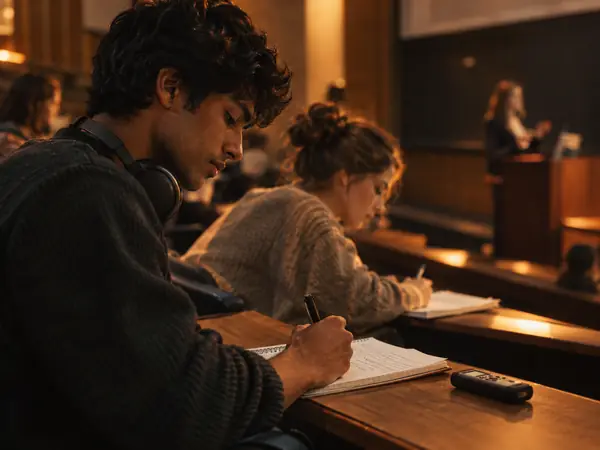
Lectures and webinars
Listen to a recorded class or talk on a walk or a commute.

Video podcasts
Turn a recorded video call into an episode for your podcast feed.
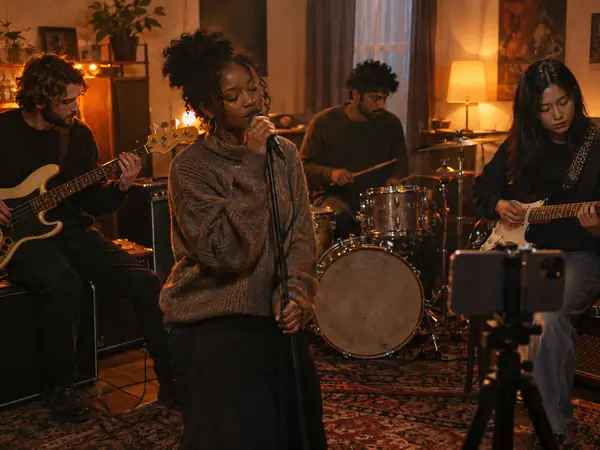
Your own music videos
Take the song out of your band’s video for a demo or a playlist.

Interviews to transcribe
Convert a recorded interview and send it to the transcriber.
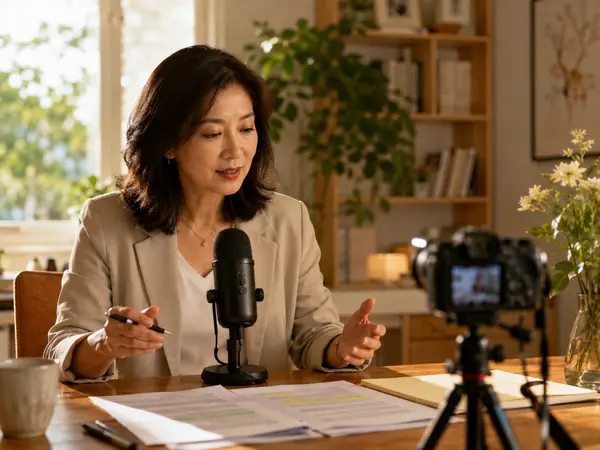
Tutorials and screen recordings
Keep the narration of a walkthrough as an audio note.
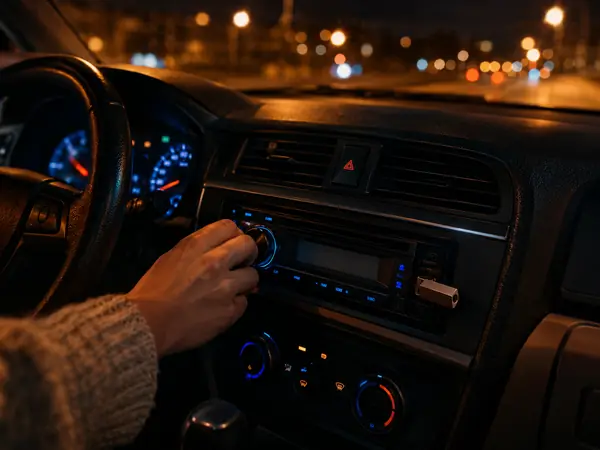
Car stereos and MP3 players
Play the sound of a video on devices that only read MP3.
MP4 to MP3 FAQ
More converters and audio tools


Convert MP4 to MP3 now
Drop in your videos, pick a bitrate and download the MP3s, free and right in your browser.